Projects and purchase
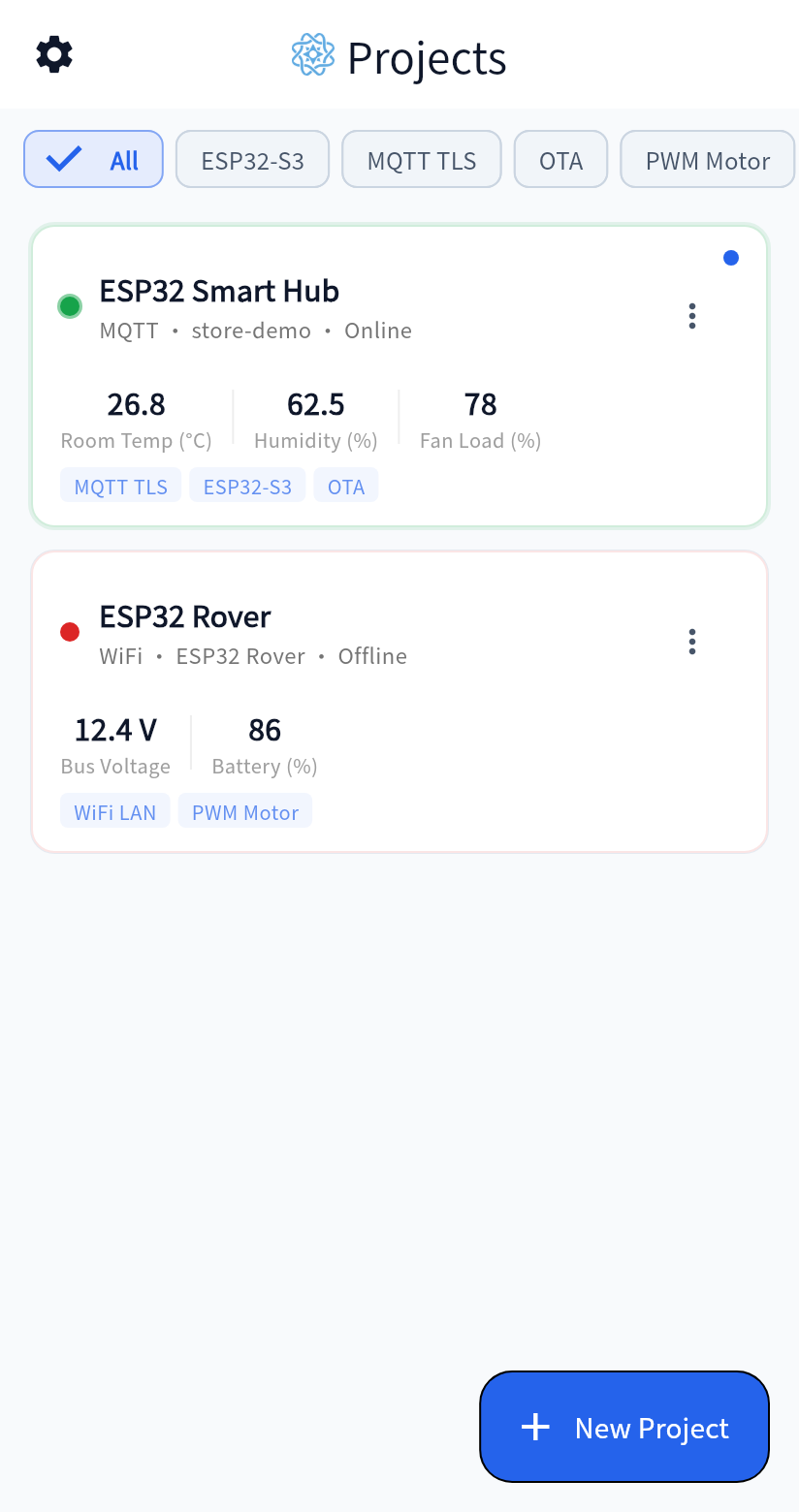
WizDash opens on the project list. Each project has its own dashboard, connection settings, and device binding. All of it stays on the phone.
Project menu
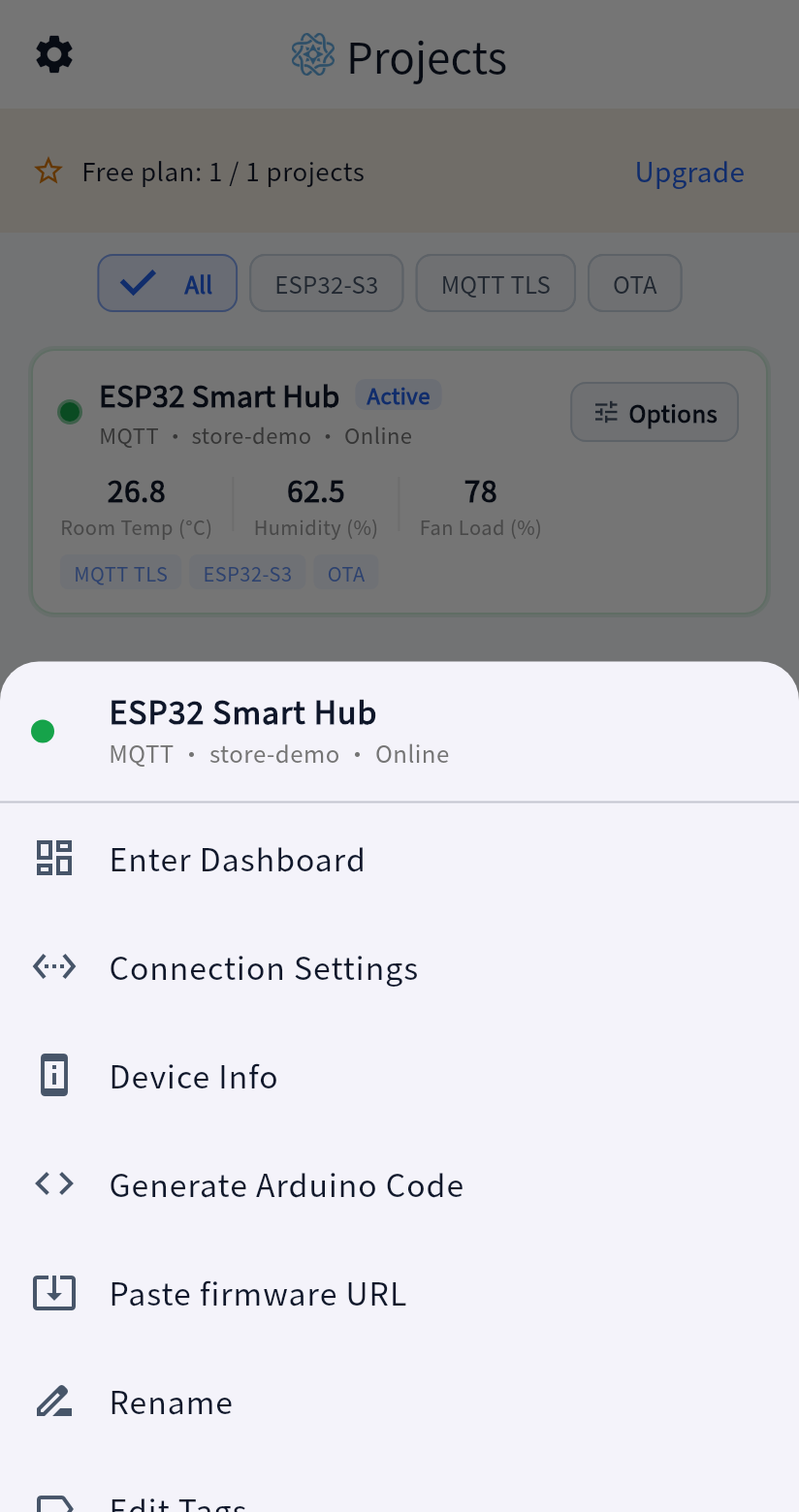
Section titled “Project menu”- Enter Dashboard opens the dashboard.
- Connection Settings chooses BLE, WiFi, or MQTT.
- Bind Device appears before a device is bound. Afterward the item becomes Device Info.
- Generate Arduino Code builds the sketch for this project.
- Rename and Edit Tags change the project’s name and labels.
- Export Layout saves the widgets, their positions, and the background as JSON. The file leaves out the WiFi password, the MQTT username and password, the broker address, and the device binding, so it can be shared.
- Import Layout reads an exported JSON file of up to 2 MB and replaces the project’s current dashboard.
- Duplicate Project copies the dashboard and the project’s tags. Connection settings and the binding are not copied. The new project starts as unbound BLE.
- Erase All Data removes the widgets and keeps the background, the connection settings, and the device binding.
- Delete Project removes the project from the phone.
Free and full
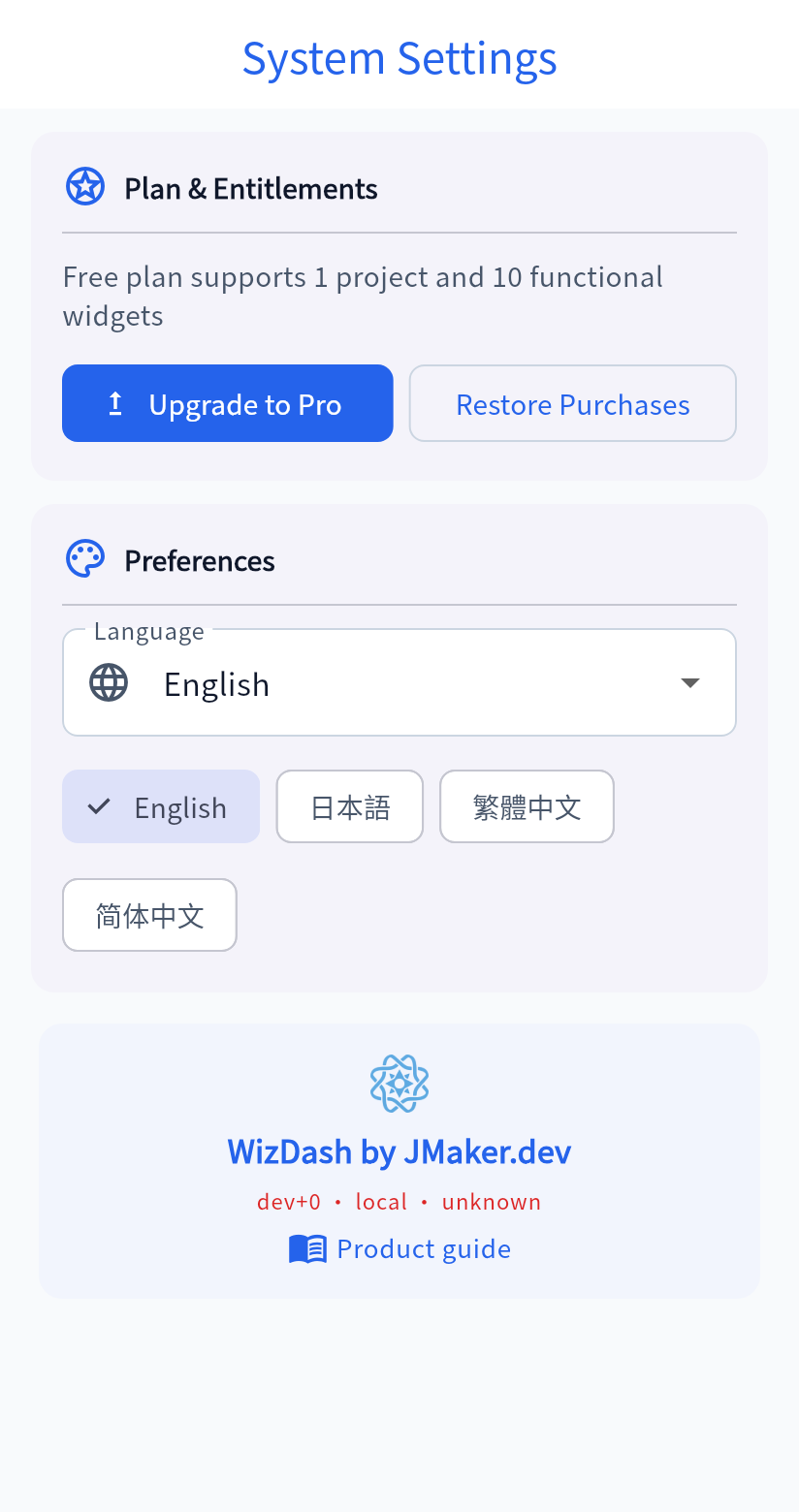
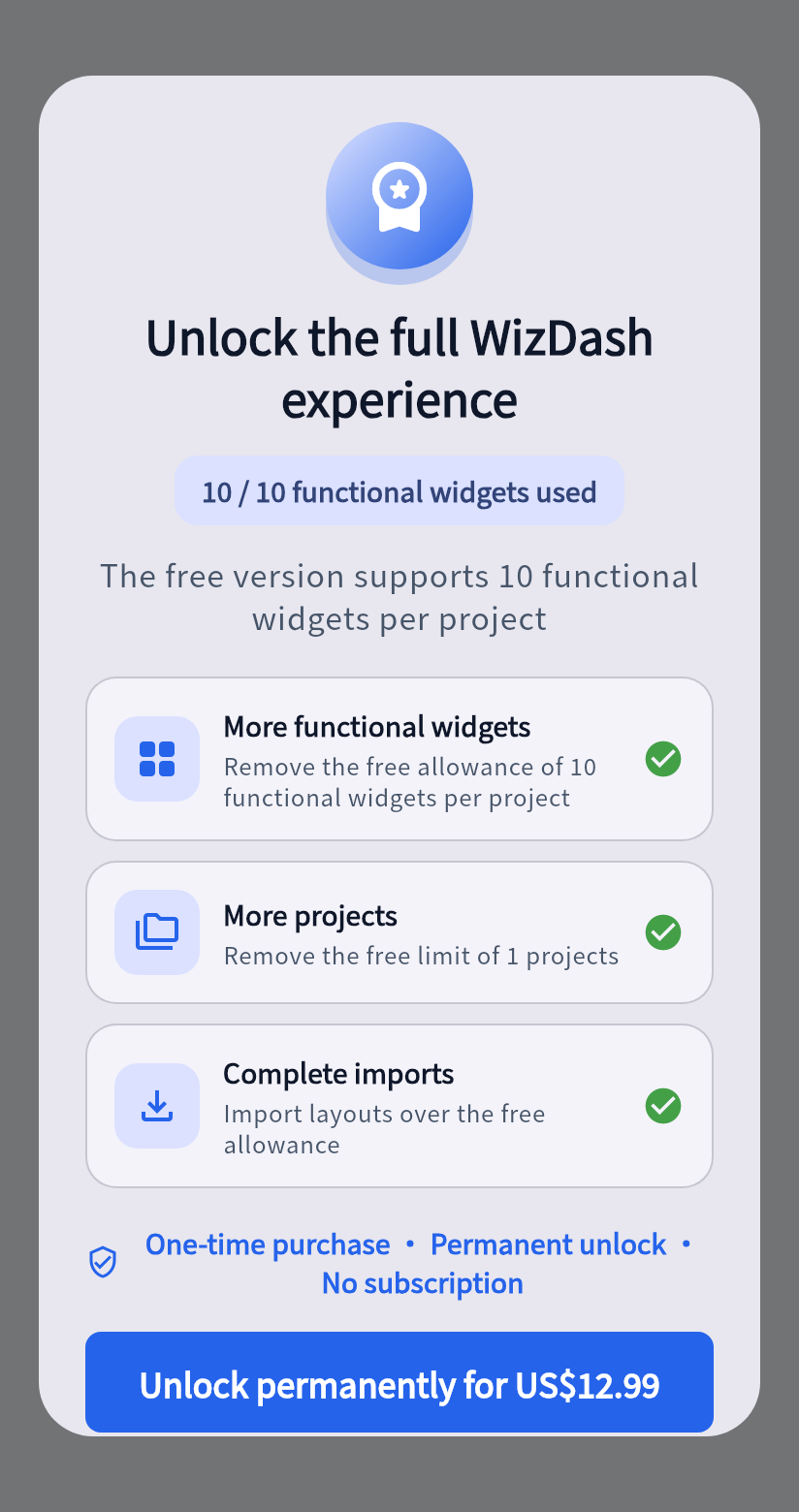
Section titled “Free and full”The free version allows 1 project and 10 functional widgets in it. A layout with more than 10 functional widgets can be imported only with the full version.
The full version is a one-time purchase through Google Play, with no subscription. It removes the limits on the number of projects and functional widgets.
Purchase and restore are handled by Google Play. If the store cannot be reached for a while, an entitlement already stored on that phone remains available. WizDash is available on Google Play.
Other settings and canvas background
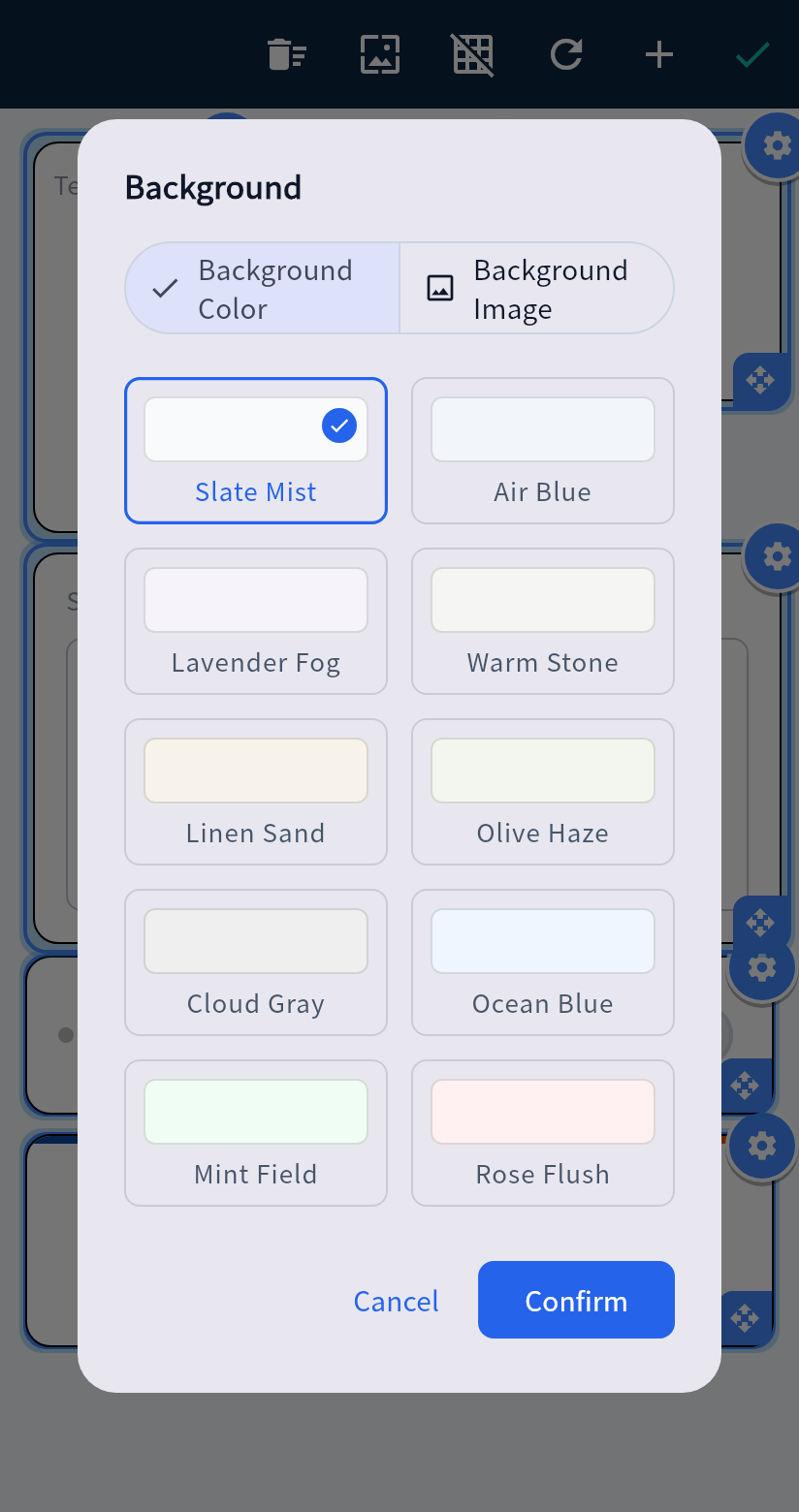
Section titled “Other settings and canvas background”Settings (top-left gear on the project list) changes the interface language (System default, 繁體中文, 简体中文, English, and 日本語) and shows your plan status. To customize a dashboard’s background color or image, open Edit Layout inside that project and tap the wallpaper icon on the top toolbar.