
Troubleshooting

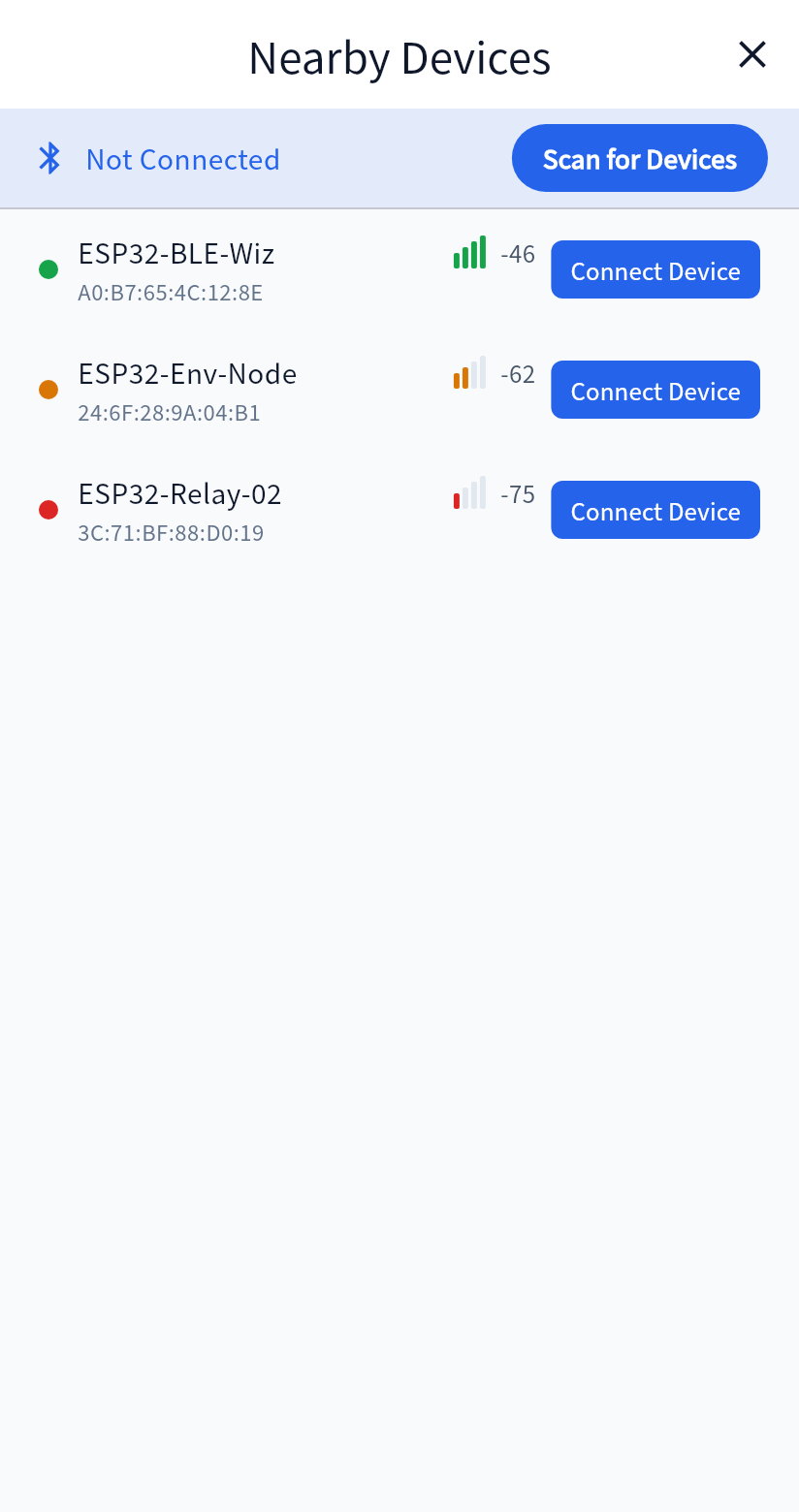
The BLE scan finds nothing
Section titled “The BLE scan finds nothing”Confirm that the board is running a sketch generated for BLE. Turn on Bluetooth. On Android 11 and earlier, allow location permission as well. Bring the phone close to the board, and make sure another phone is not already connected to it.
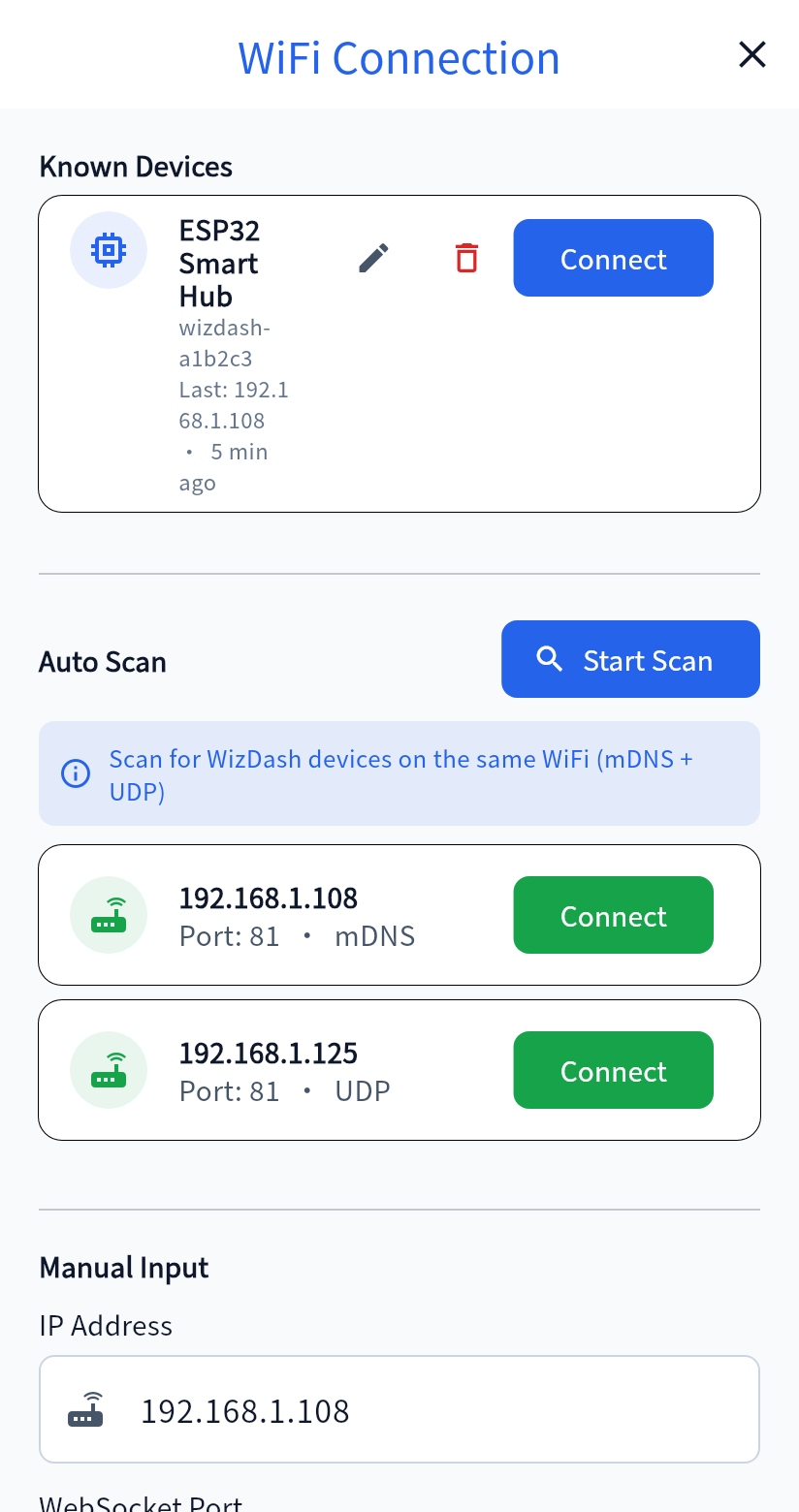
The WiFi scan finds nothing
Section titled “The WiFi scan finds nothing”Confirm that the phone and the ESP32 are joined to the same WiFi network. A classic ESP32 uses 2.4 GHz WiFi only. A guest network, or a router that isolates its clients, can prevent the two from seeing each other. You can also read the board’s IP address in the Serial Monitor and enter it by hand.
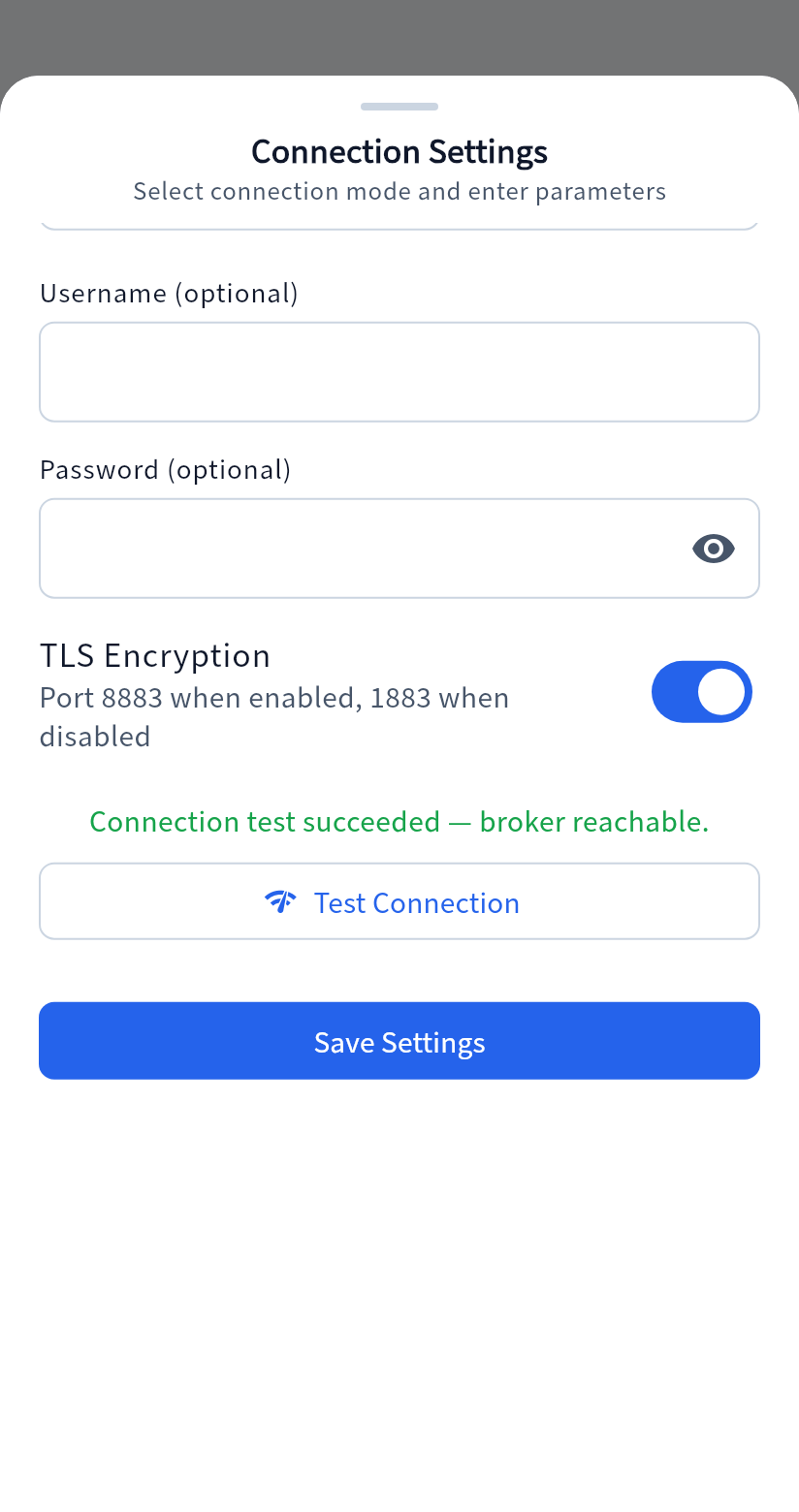
The MQTT test succeeds, but no data arrives
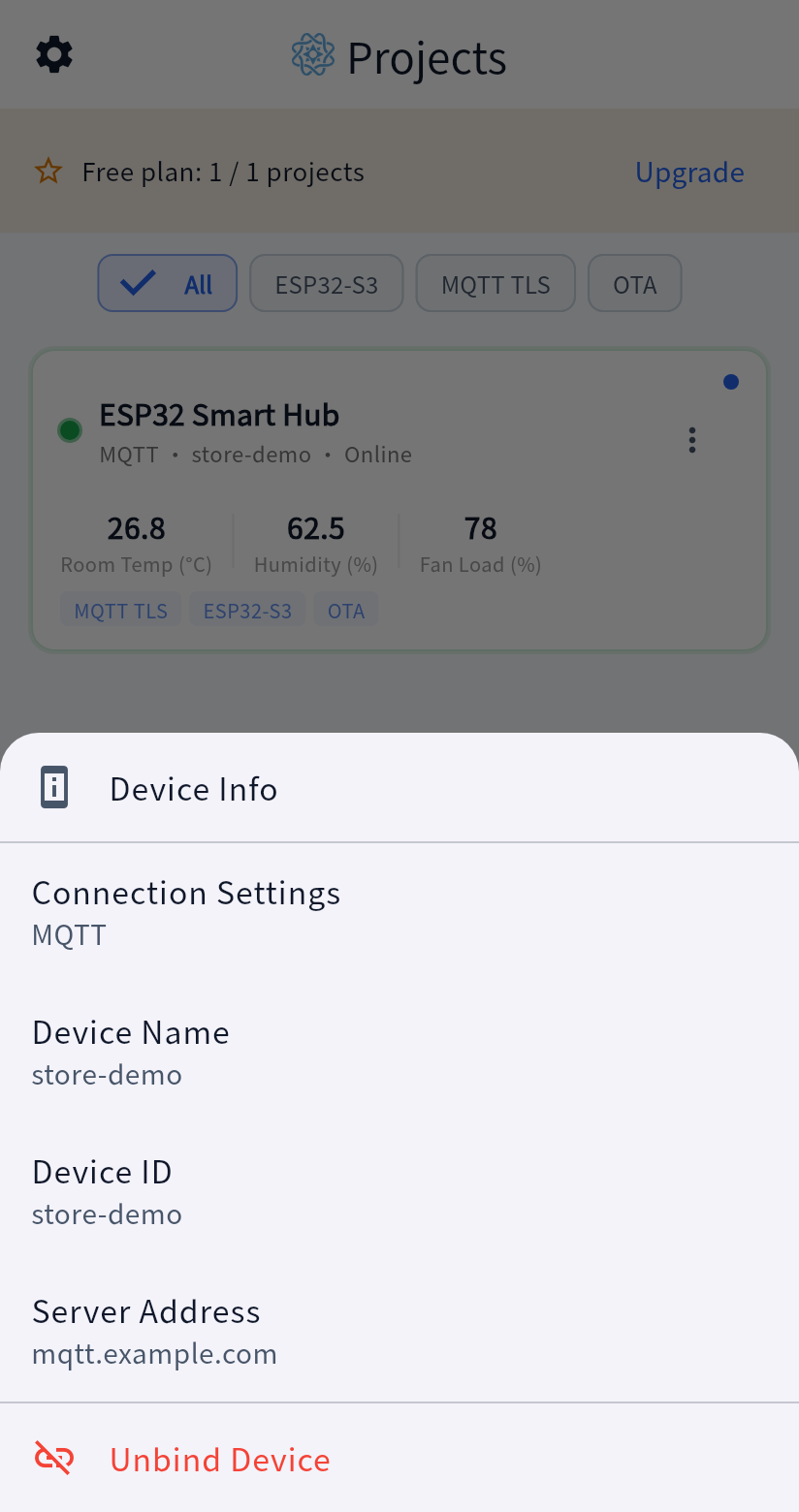
Section titled “The MQTT test succeeds, but no data arrives”The test only shows that the phone can reach the broker. Confirm that the board can reach it too. The device ID, username, TLS setting, and port must match the values flashed to the board. When a username is set, the topic includes it. When no username is set, that part of the topic is left out. A single difference on either side prevents the two from meeting.
A widget does not respond
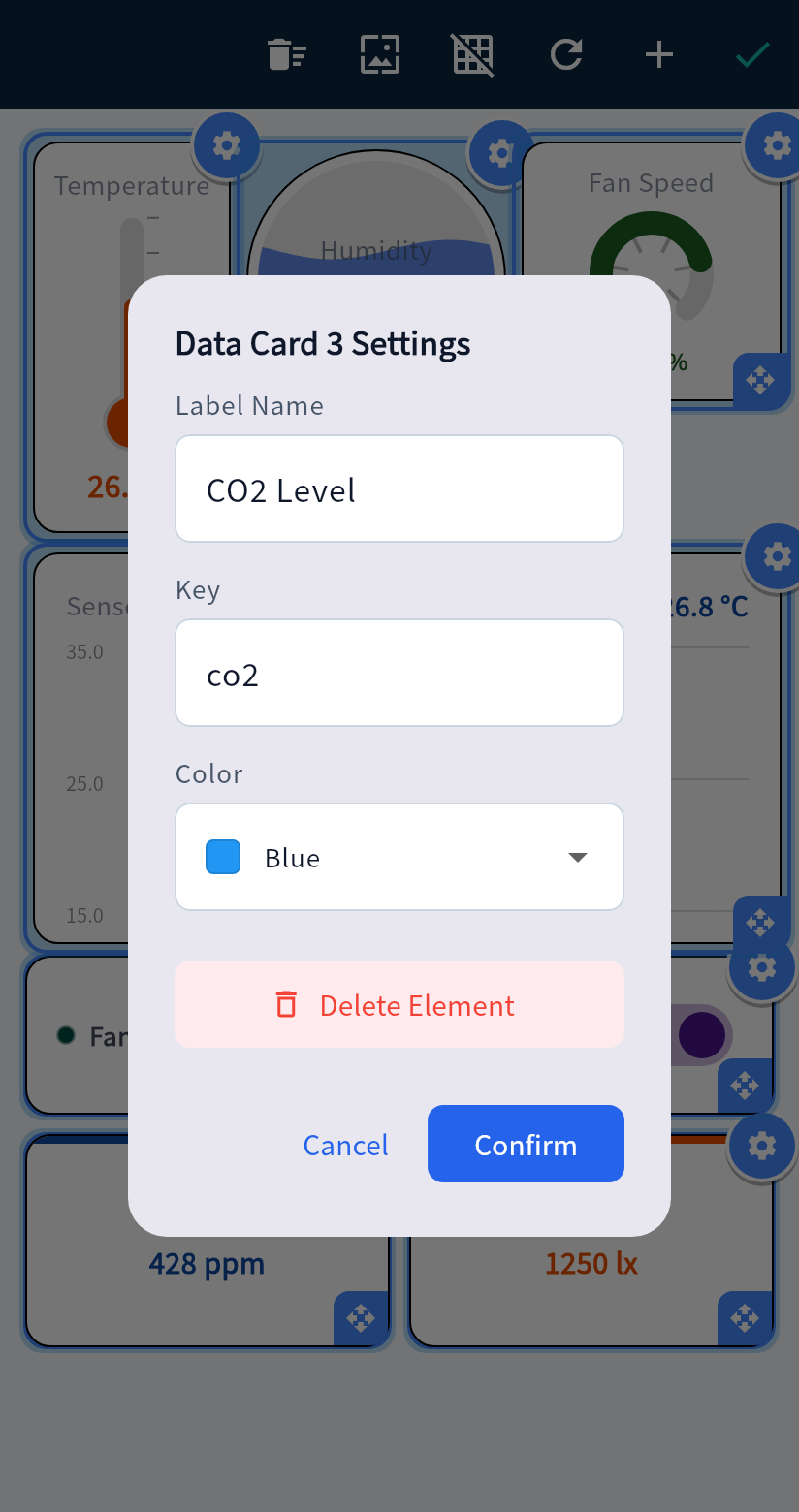
Section titled “A widget does not respond”The JSON key must match the firmware exactly, including case. The board must send one complete JSON object. A display such as a gauge expects a number, so a text value will not move it.
A widget cannot be added
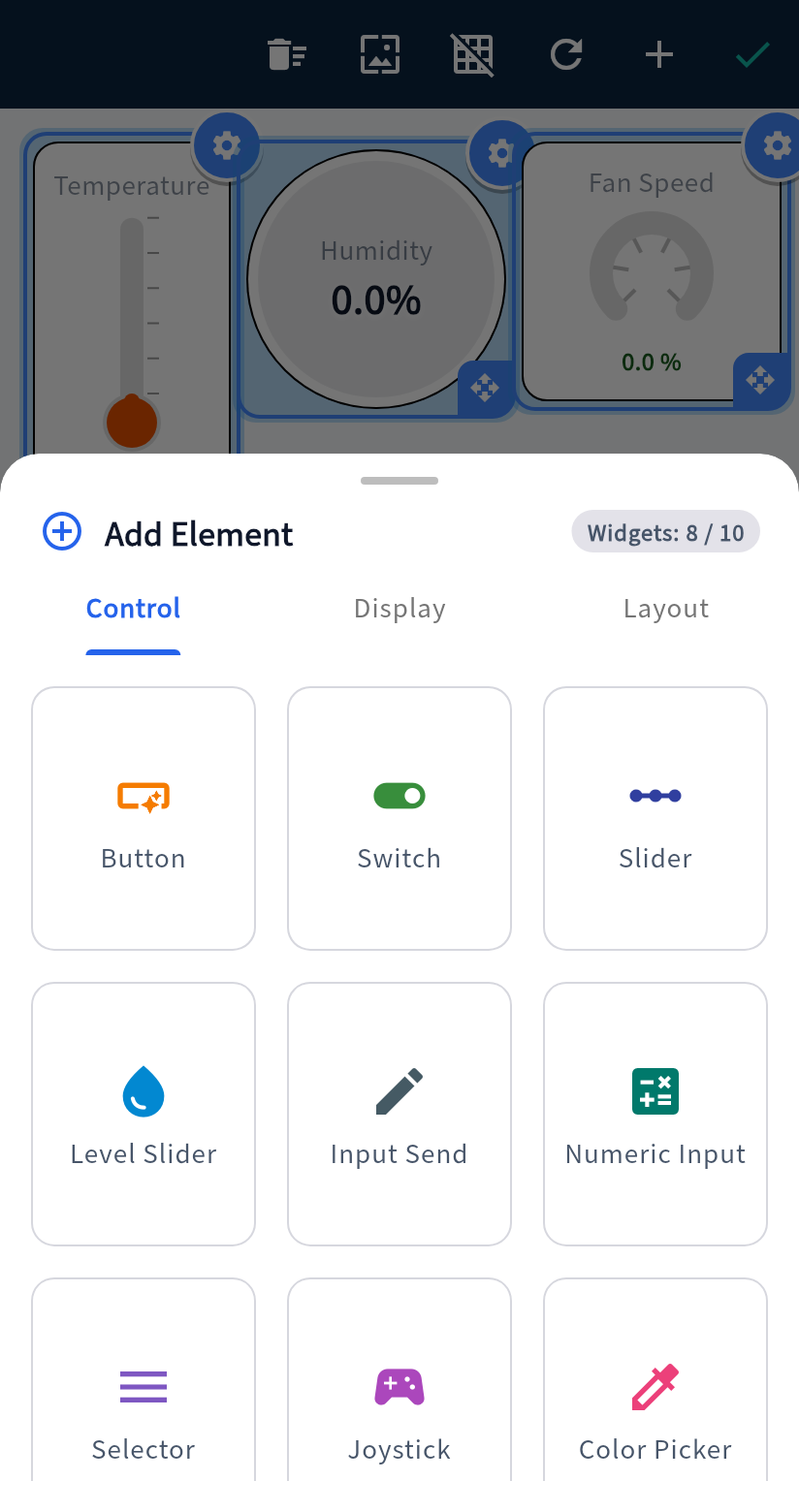
Section titled “A widget cannot be added”The free version allows 10 functional widgets in a project. Each widget type holds at most 20.
Import fails
Section titled “Import fails”The file must be within 2 MB and must be a layout exported by WizDash. A layout with more than 10 functional widgets requires the full version.
OTA is missing
Section titled “OTA is missing”Paste firmware URL is on the menu of an MQTT project, including before the phone has connected. Sending the update requires the phone to be connected to that project’s broker. The board must be running the sketch variant generated with OTA included.