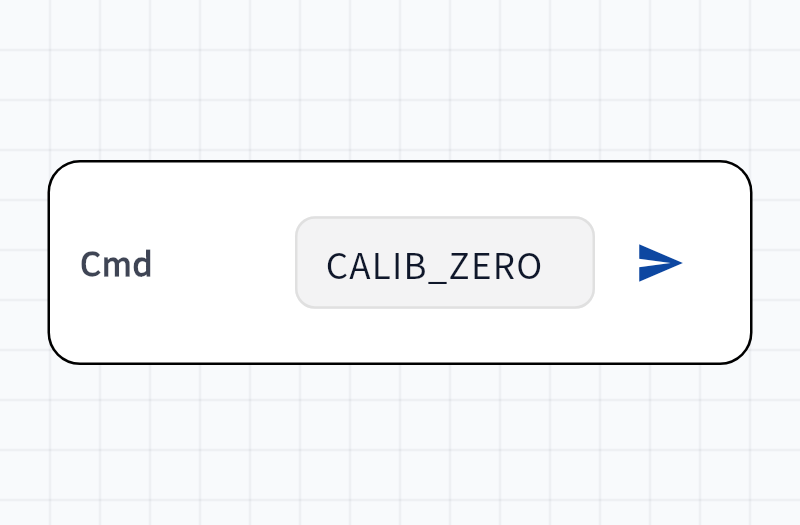
Button Command Button
App ➔ BoardJSON
{"pump_cmd": 1}Tap to dispatch your configured command. Numbers are sent as numeric values, others as text strings.
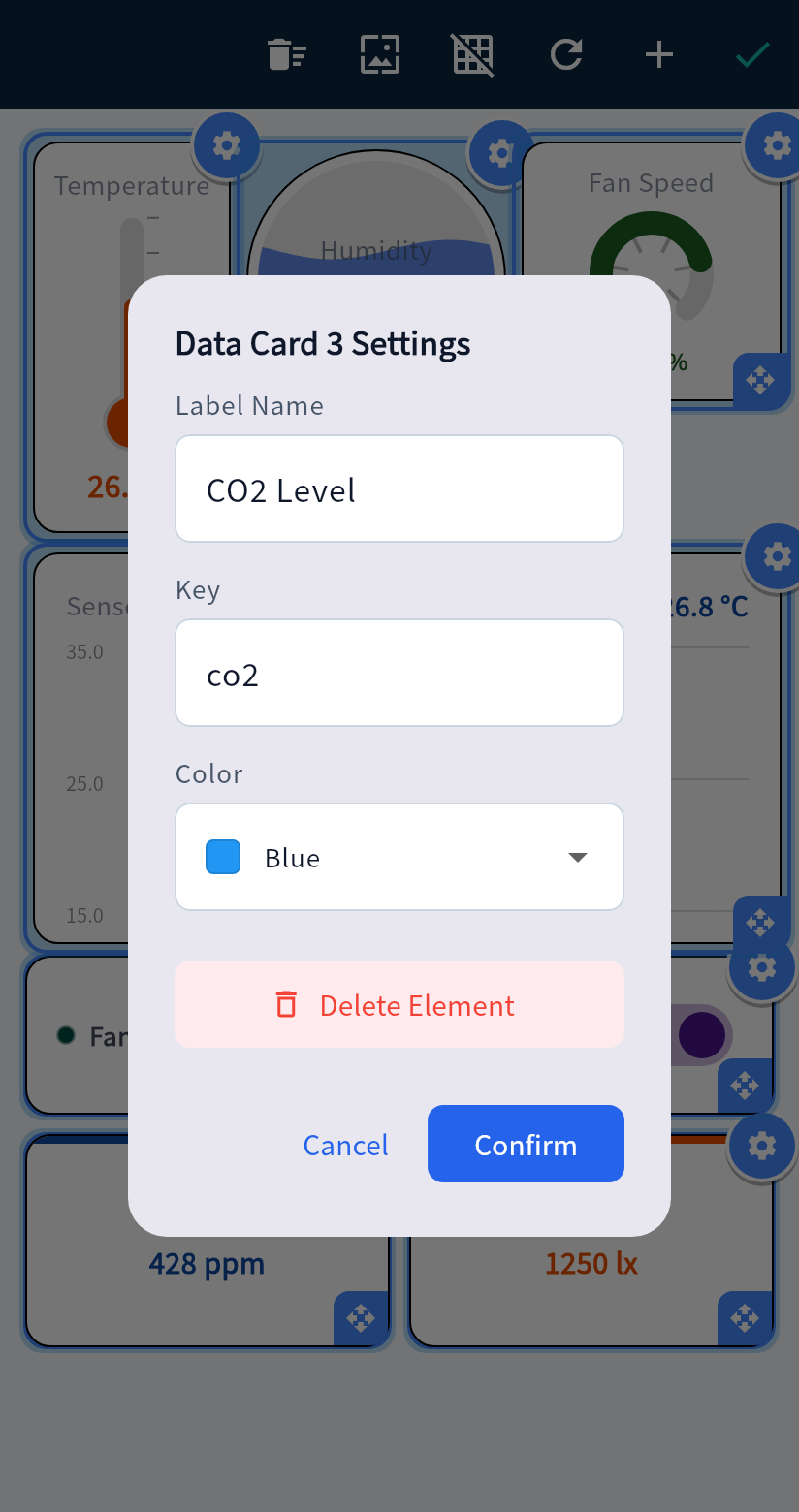
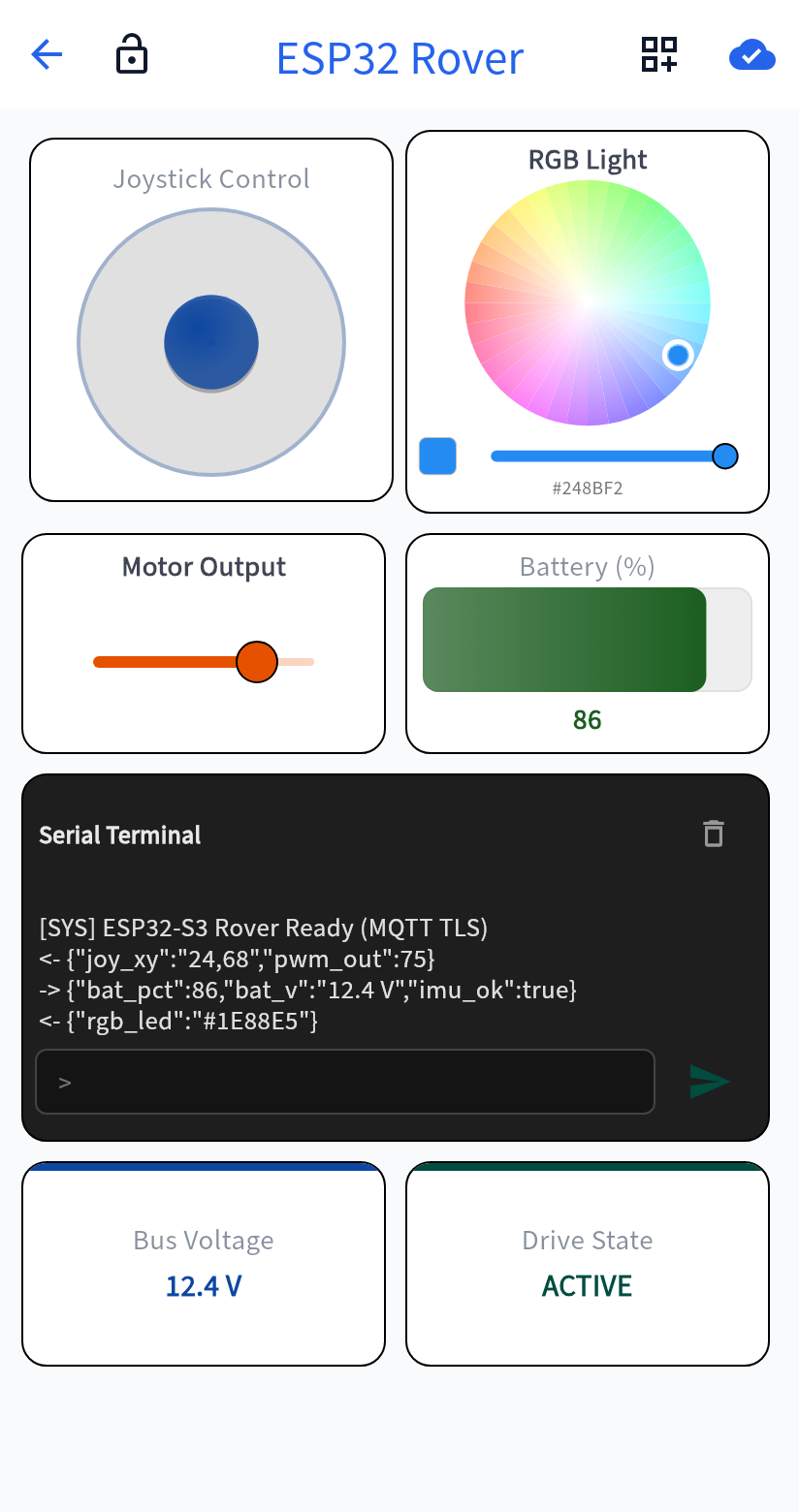
Choose Enter Dashboard to open the project. If no device is bound, the app shows No Device Bound first. Not flashed yet, design dashboard first opens the canvas and turns on Edit Layout. After a device is bound, turn on Edit Layout before adding, dragging, resizing, or tapping the wallpaper icon on the top toolbar to change the canvas background color or image. Widgets do not overlap. Double-tap a widget to change its title, color, JSON key, and the range or options that belong to it. After the project is connected, display widgets update live and controls can be used.
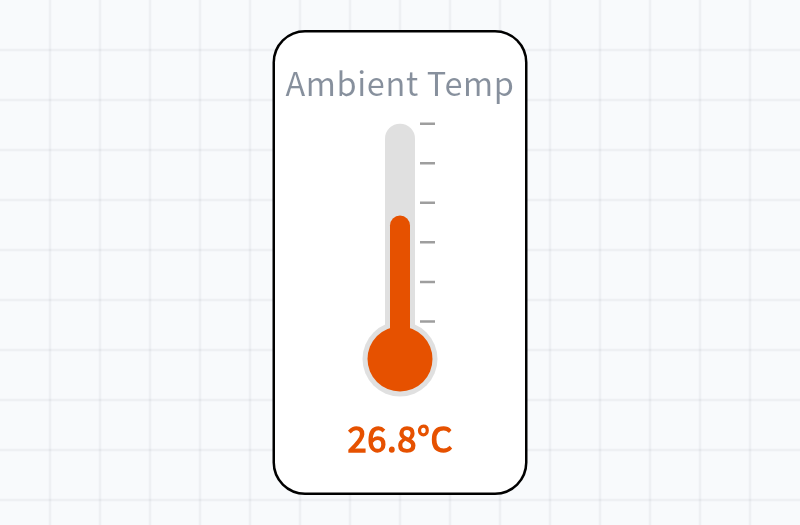
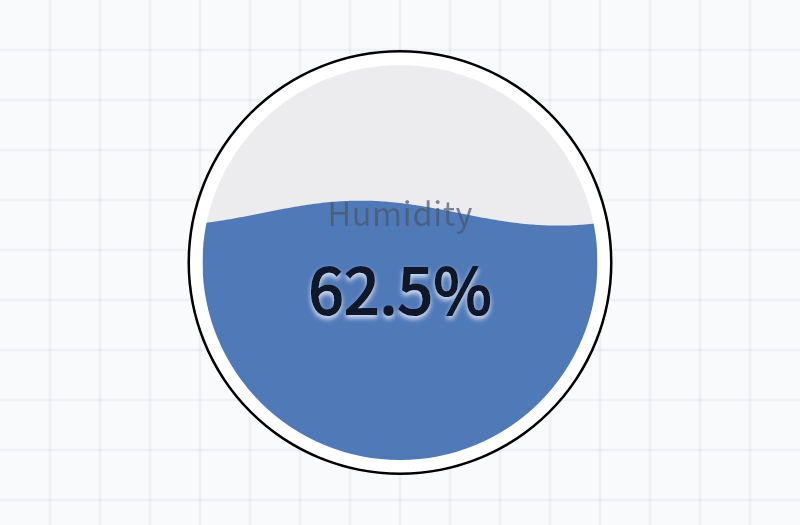
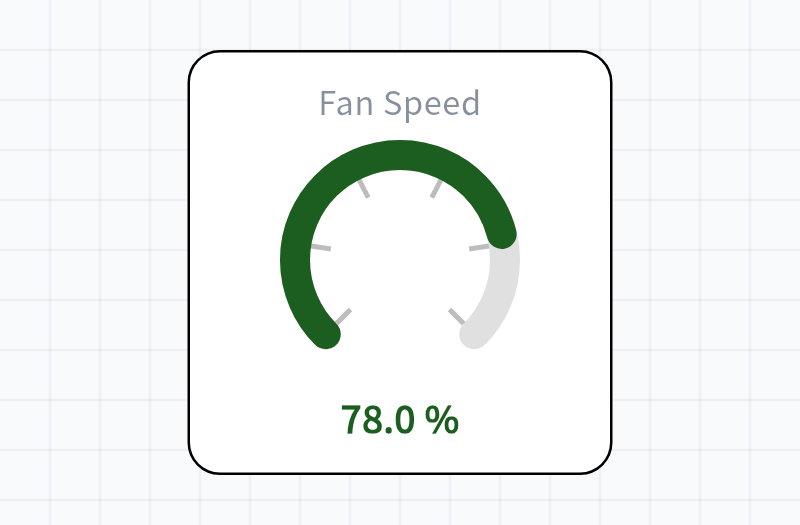
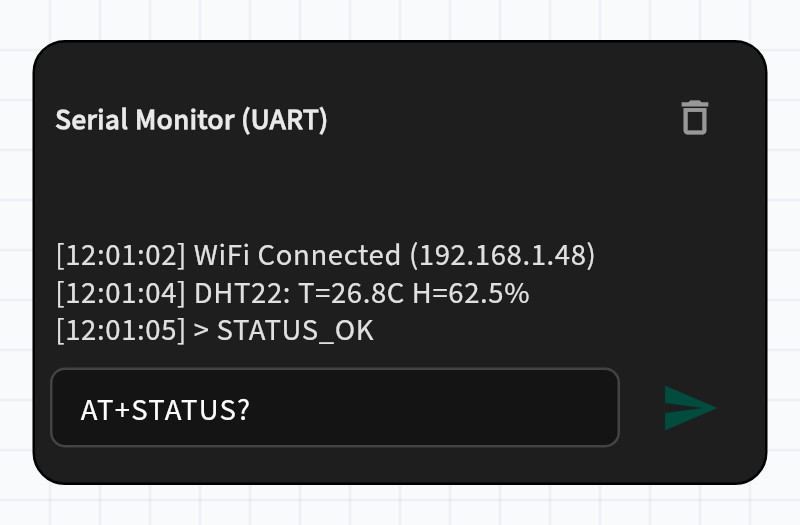
BLE, WiFi, and MQTT share one format. The board places every reading in a single JSON object, and the app updates the widget with the matching key. When you use a control, the app sends {"key": value}.
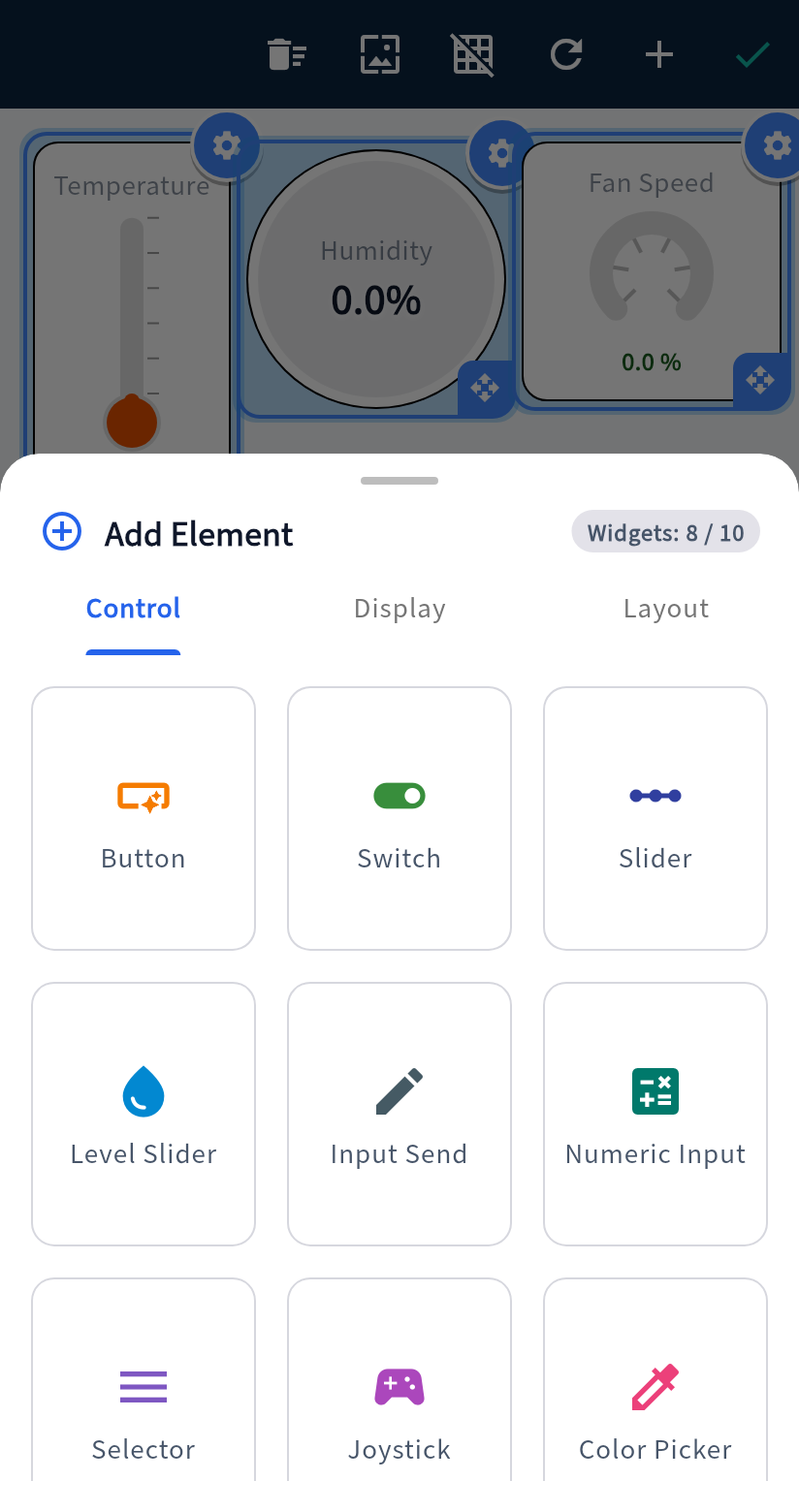
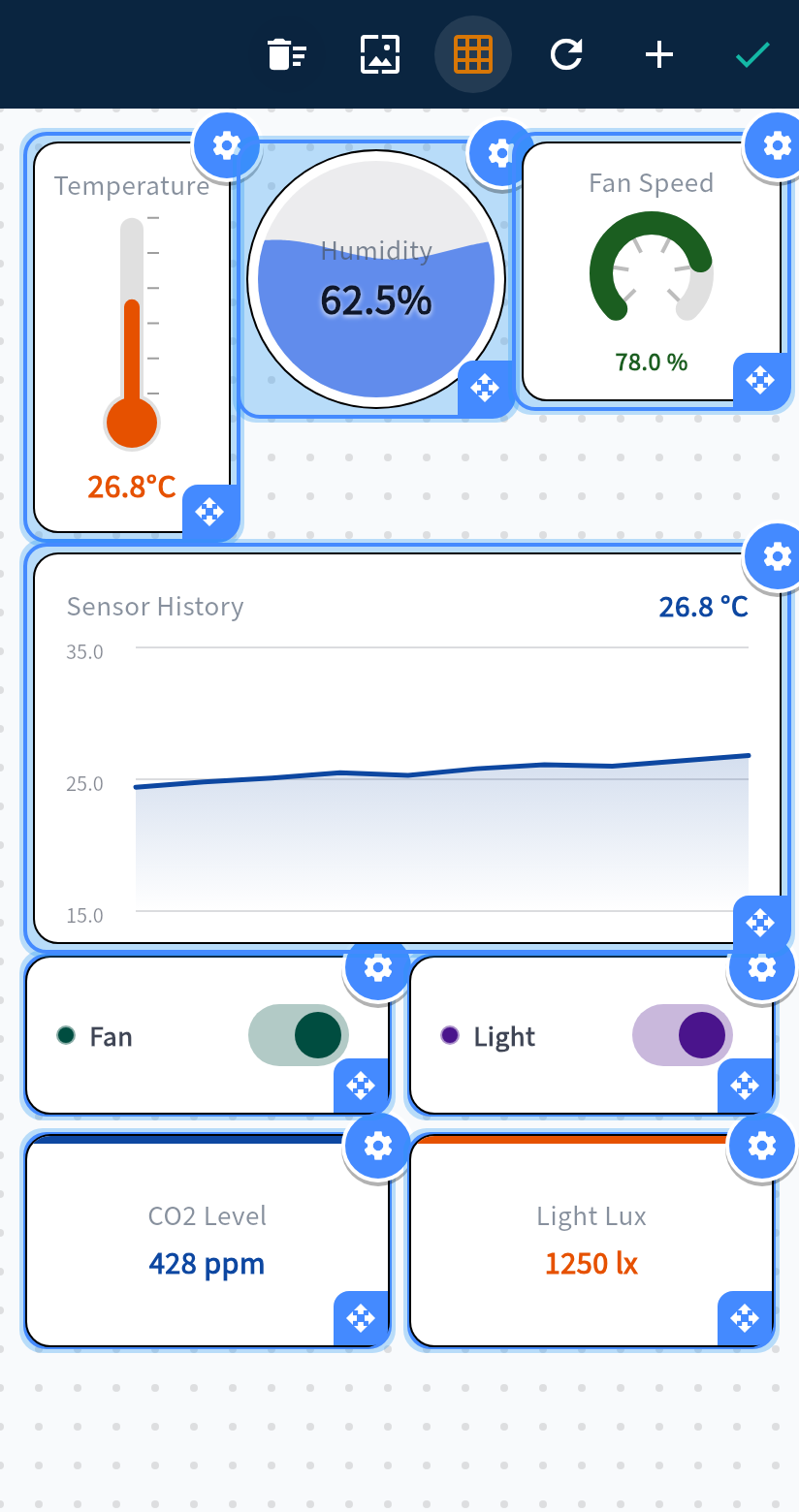
Each widget type holds at most 20. Input Send and Numeric Input share one set of 20. Level and Level Slider share another.
On the free version, a project holds 10 functional widgets. Icon and Spacer are not counted. Text Label and Image are counted. A project that is already over the allowance still opens and works. It cannot gain another functional widget.
The app sends these values to the board when you interact with widgets on your phone.
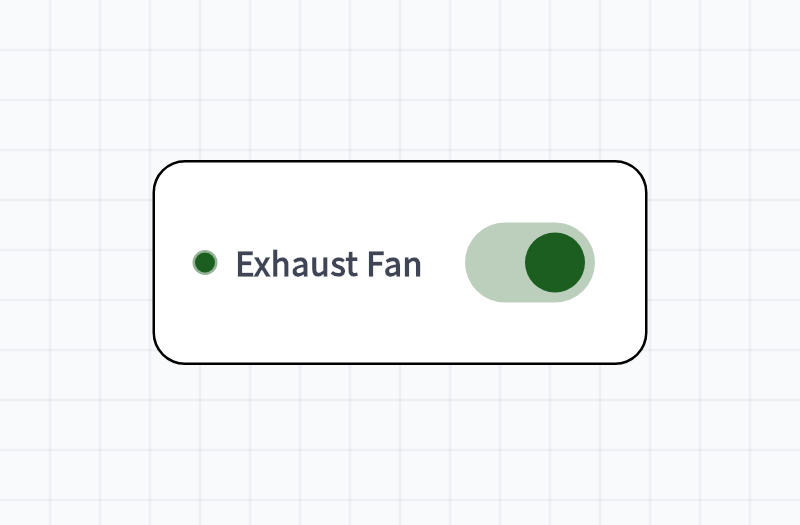
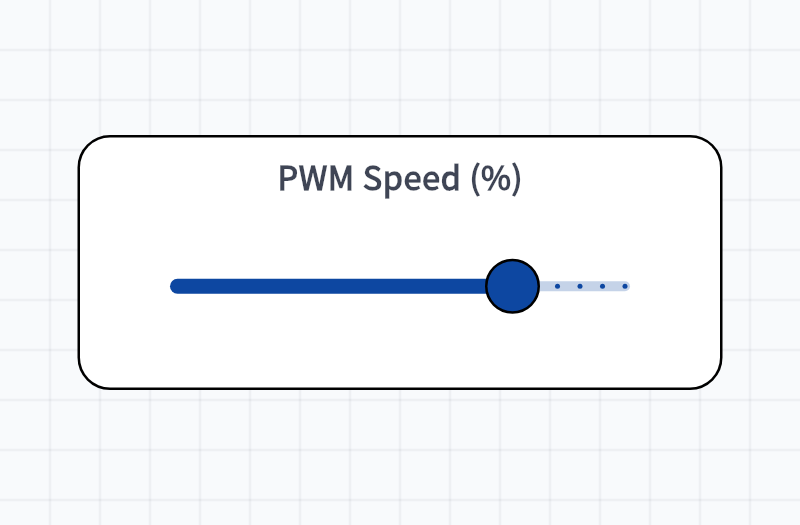
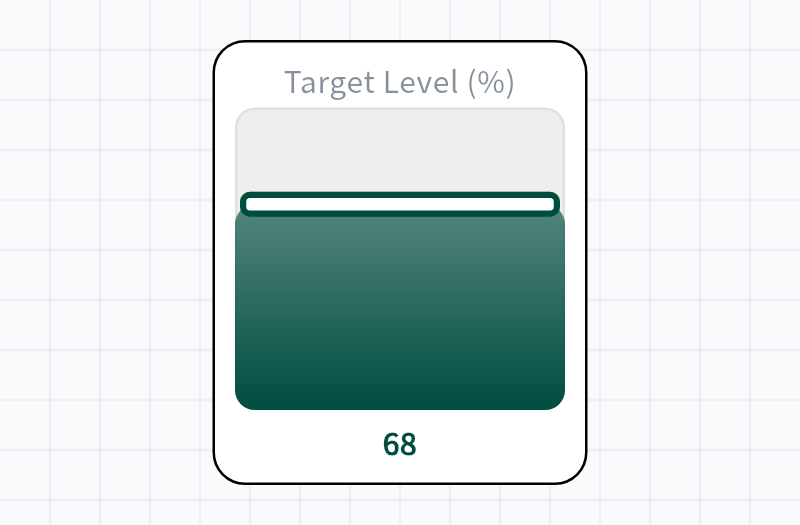
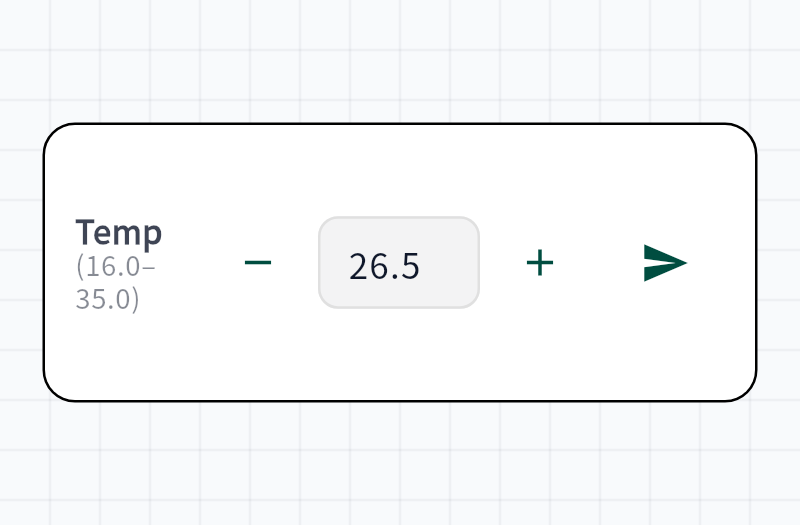
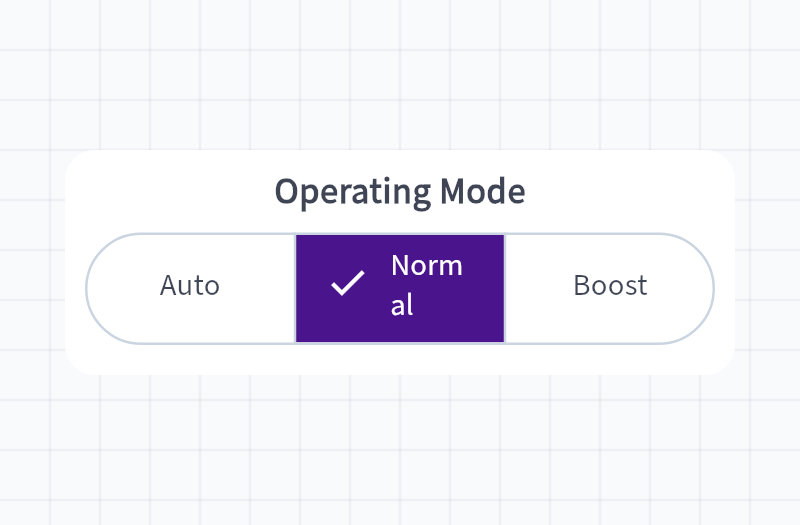
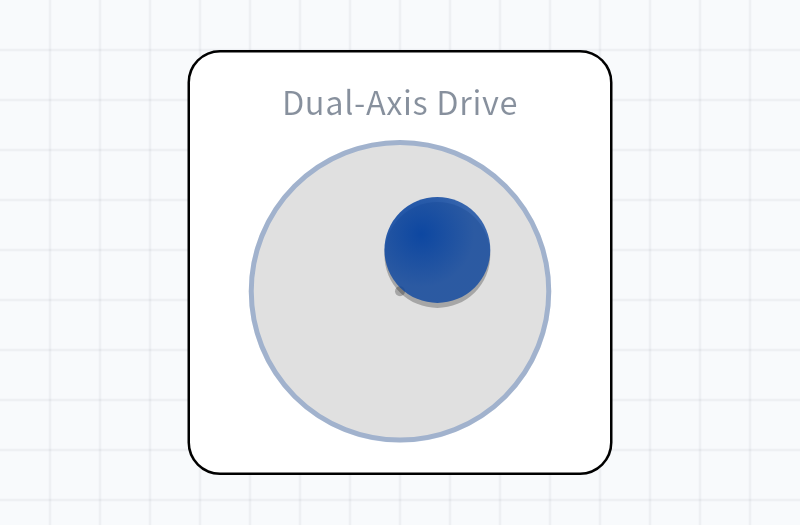
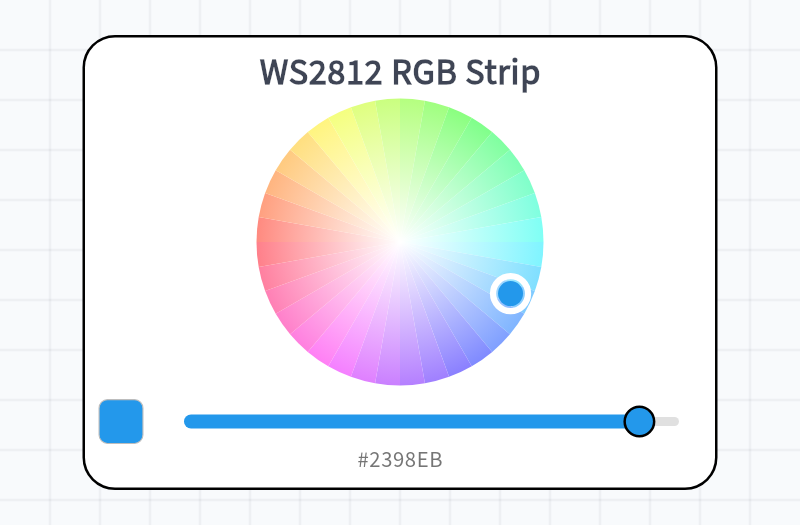
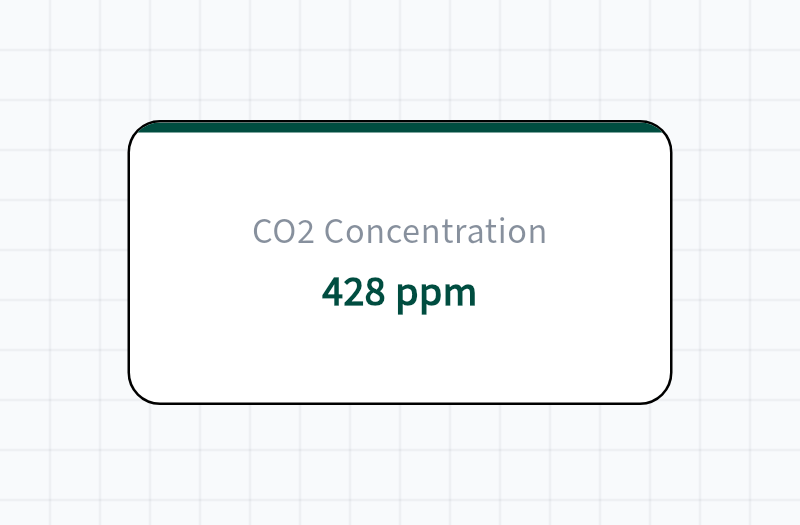
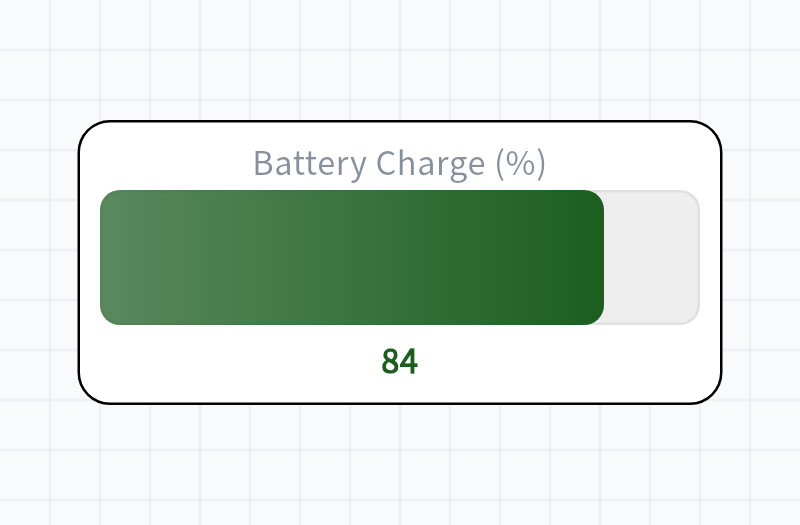
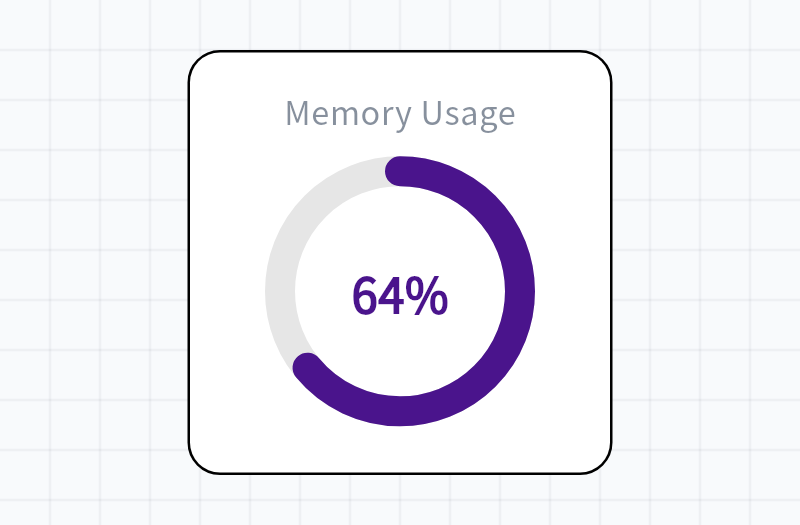
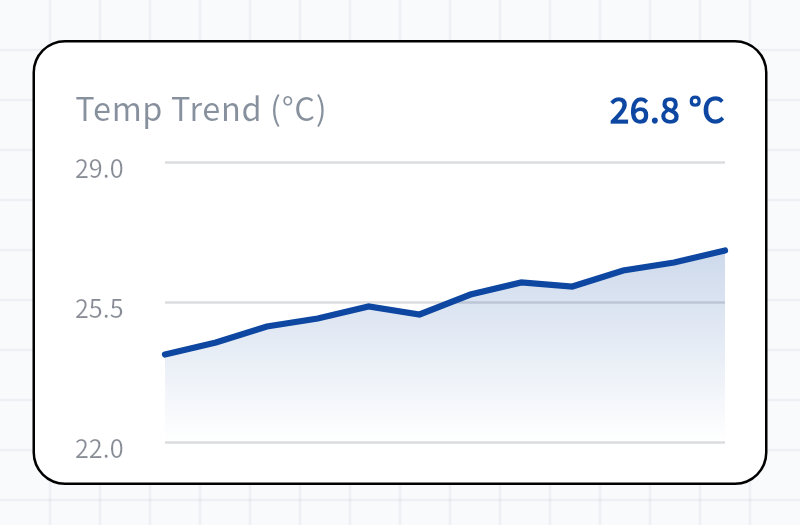
The board sends values to the app in a single JSON payload. The app updates matching widgets automatically.
Text Label, Icon, Image, and Spacer arrange the screen and do not exchange JSON data.